



New! Render PlantUML diagrams directly inside GitHub
with our official browser extension —
No server. No tokens. No tracking. Zero permissions but clipboard. —
Try it out and let us know what you think!
Sequence diagram
 Edit in Dokuwiki
 Edit in Asciidoc
 Edit in Markdown
- Text in, diagram out. The source is the single point of truth, what you read is what gets rendered.
- Easy to edit. Adjust a line of text instead of dragging boxes around.
- Quick to iterate. Live preview tools render as you type, so you catch mistakes early.
 Basic Examples
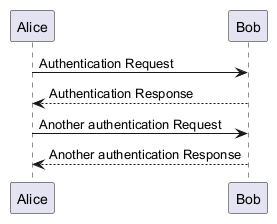
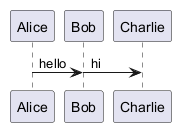
In PlantUML sequence diagrams, the -> sequence denotes a message sent between two participants, which are automatically recognized and do not need to be declared beforehand.
Utilize dotted arrows by employing the --> sequence, offering a distinct visualization in your diagrams.
To improve readability without affecting the visual representation, use reverse arrows like <- or <--. However, be aware that this is specifically for sequence diagrams and the rules differ for other diagram types.
Declaring participant
If the keyword participant is used to declare a participant, more control on that participant is possible.
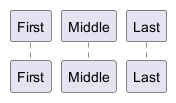
The order of declaration will be the (default) order of display.
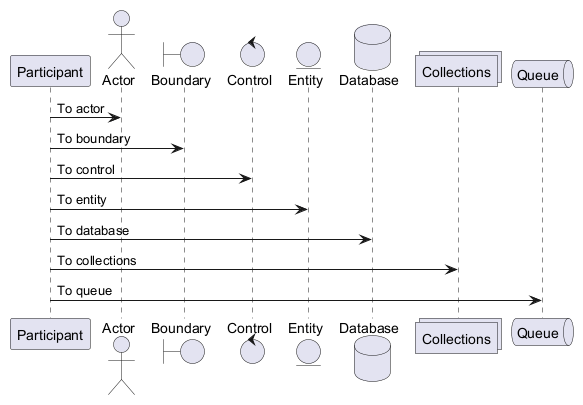
Using these other keywords to declare participants will change the shape of the participant representation:
actorboundarycontrolentitydatabasecollectionsqueue
<participant_type> <label> as <alias>
as keyword.
You can also change the background color of
actor or participant.
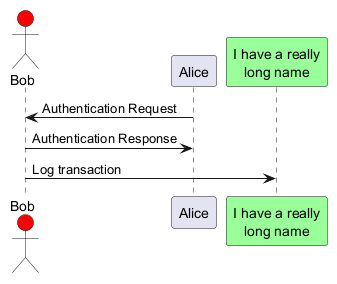
order keyword to customize the display order of participants.
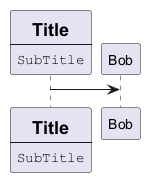
Declaring participant on multiline
You can declare participant on multi-line.
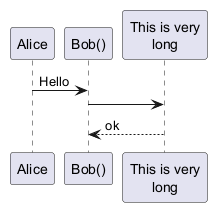
Use non-letters in participants
You can use quotes to define participants.
And you can use the as keyword to give an alias to those participants.
Message to Self
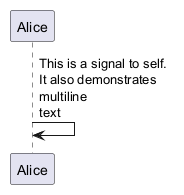
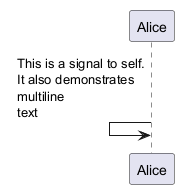
A participant can send a message to itself.
It is also possible to have multi-line using \n.
Text alignment
Text alignment on arrows can be set to left, right or center using skinparam sequenceMessageAlign.
You can also use direction or reverseDirection to align text depending on arrow direction. Further details and examples of this are available on the skinparam page.
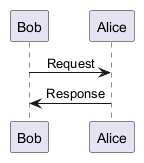
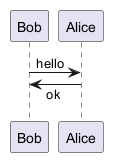
Text of response message below the arrow
You can put the text of the response message below the arrow, with theskinparam responseMessageBelowArrow true command.
Change Actor style
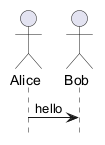
You can change the actor style from stick man (by default) to:
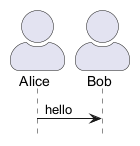
- an awesome man with the
skinparam actorStyle awesomecommand; - a hollow man with the
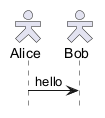
skinparam actorStyle hollowcommand.
Stick man (by default)
Awesome man
Hollow man
Change arrow style
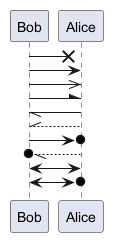
You can change arrow style by several ways:
- add a final
xto denote a lost message - use
\or/instead of<or>to have only the bottom or top part of the arrow - repeat the arrow head (for example,
>>or//) head to have a thin drawing - use
--instead of-to have a dotted arrow - add a final "o" at arrow head
- use bidirectional arrow
<->
Change arrow color
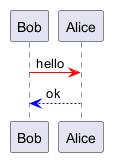
You can change the color of individual arrows using the following notation:
Message sequence numbering
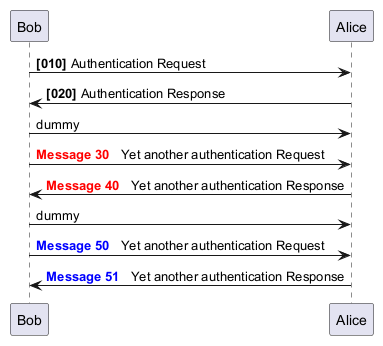
The keyword autonumber is used to
automatically add an incrementing number to messages.
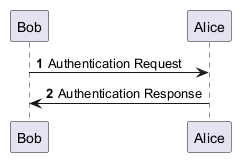
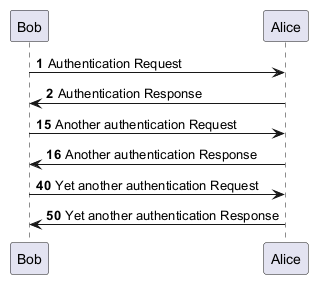
autonumber <start> , and
also an increment with autonumber <start> <increment>.
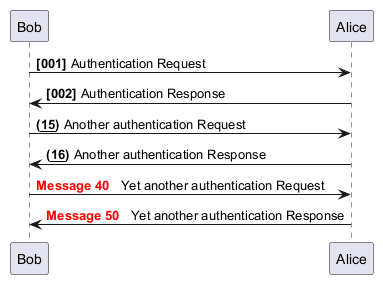
DecimalFormat
(0 means digit, # means digit and zero if absent).
You can use some html tag in the format.
autonumber stop and
autonumber resume <increment> <format> to respectively pause and resume
automatic numbering.
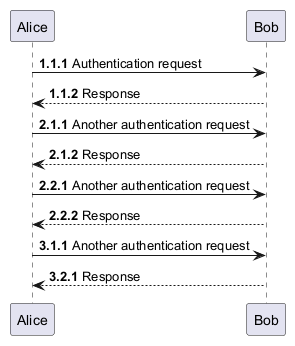
., ;, ,, : or a mix of these. For example: 1.1.1 or 1.1:1.
Automatically the last digit will increment.
To increment the first digit, use: autonumber inc A. To increment the second digit, use: autonumber inc B.
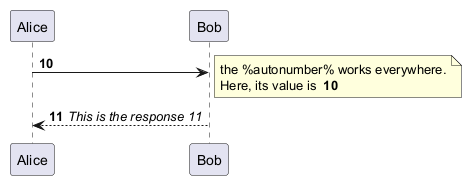
autonumber with the %autonumber% variable:
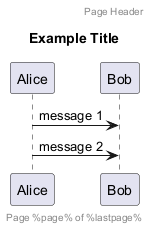
Page Title, Header and Footer
The title keyword is used to add a title to the page.
Pages can display headers and footers using header and footer.
Splitting diagrams
With newpage
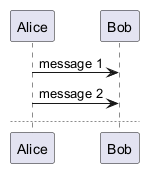
The newpage keyword is used to split a diagram into several images.
You can put a title for the new page just after the newpage
keyword. This title overrides the previously specified title if any.
This is very handy with Word to print long diagram on
several pages.
(Note: this really does work. Only the first page is shown below, but it is a display artifact.)
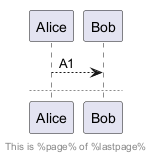
%page% and %lastpage% variables
Ignore newpage
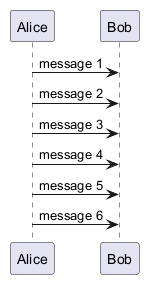
You can use theignore newpage command to show all the pages, as if there was no newpage.
Grouping message
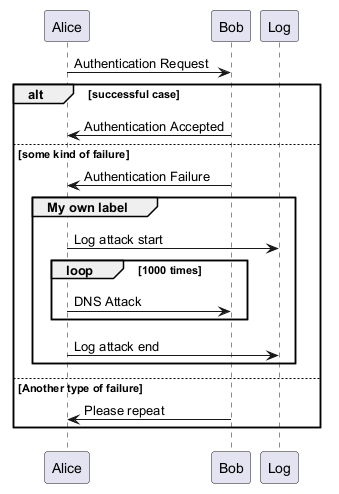
It is possible to group messages together using the following
keywords:
alt/elseoptloopparbreakcriticalgroup, followed by a text to be displayed
group, see next paragraph 'Secondary group label').
The end keyword is used to close the group.
Note that it is possible to nest groups.
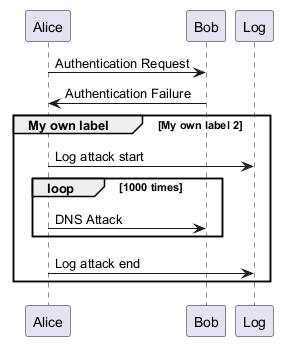
Secondary group label
For group, it is possible to add, between[ and ], a secondary text or label that will be displayed into the header.
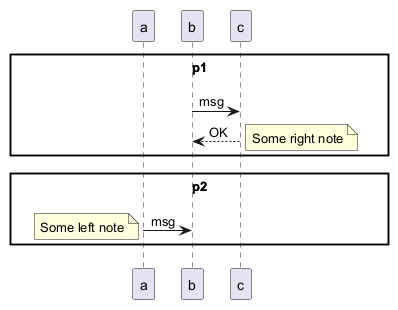
Partition across the entire width
You can use partition command to group messages horizontally across the entire width (full-width).
Messages are not grouped horizontally across the entire width (by default)
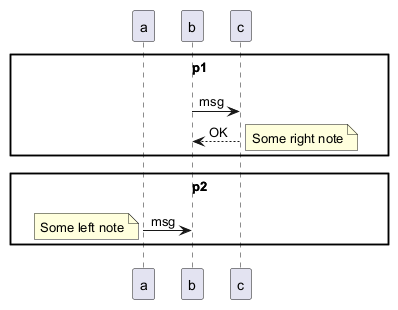
Grouping messages horizontally across the entire width (with teoz mode)
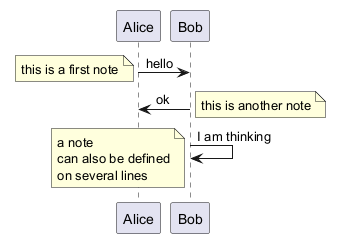
Notes on messages
It is possible to put notes on message using the note left
or note right keywords just after the message.
You can have a multi-line note using the end note
keywords.
Some other notes
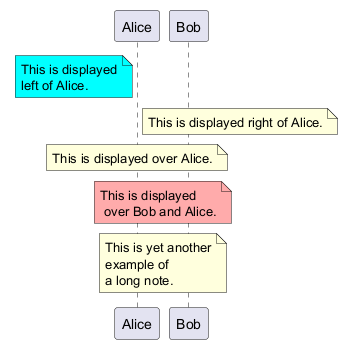
It is also possible to place notes relative to participant with note left of , note right of or note over keywords.
It is possible to highlight a note by changing its background color.
You can also have a multi-line note using the end note keywords.
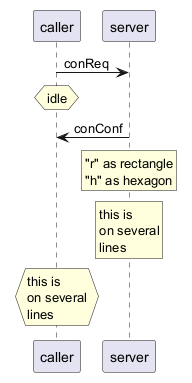
Changing notes shape [hnote, rnote]
You can use hnote and rnote keywords
to change note shapes :
hnotefor hexagonal note;rnotefor rectangle note.
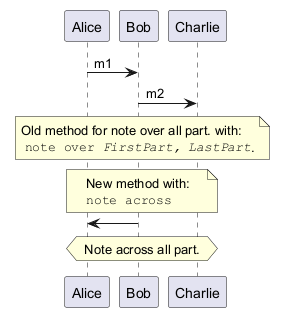
Note over all participants [across]
You can directly make a note over all participants, with the syntax:
note across: note_description
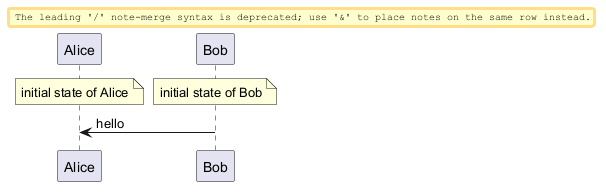
Several notes aligned at the same level [/]
You can make several notes aligned at the same level, with the syntax /:
- without
/(by default, the notes are not aligned)
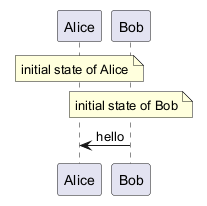
- with
/(the notes are aligned)
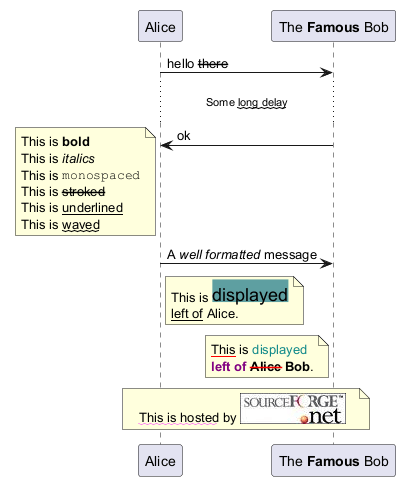
Creole and HTML
It is also possible to use creole formatting:
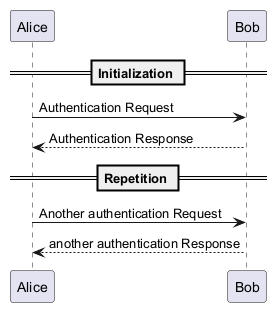
Divider or separator
If you want, you can split a diagram using == separator to
divide your diagram into logical steps.
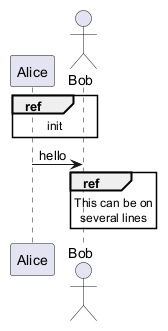
Reference
You can use reference in a diagram, using the keyword ref over.
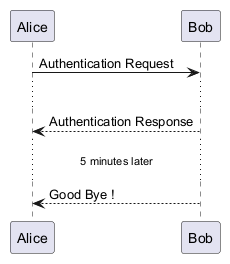
Delay
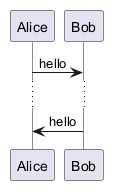
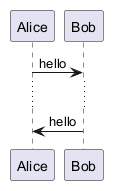
You can use ... to indicate a delay in the diagram.
And it is also possible to put a message with this delay.
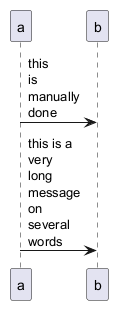
Text wrapping
To break long messages, you can manually add \n in your text.
Another option is to use maxMessageSize setting:
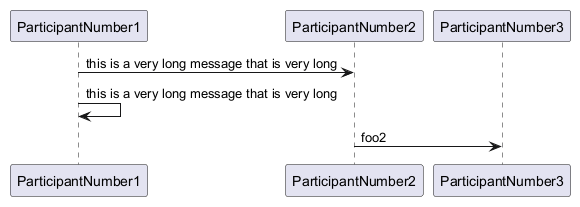
Message text spans beyond the involved participants
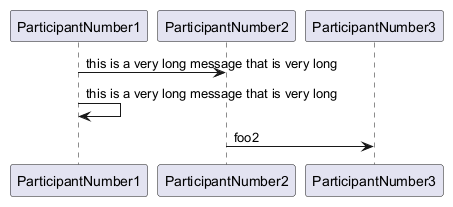
You can use sequenceMessageSpan command to allow message text to span beyond the involved participants.
Without sequenceMessageSpan (by default)
With sequenceMessageSpan (on teoz mode)
Space
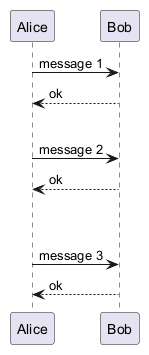
You can use ||| to indicate some spacing in the diagram.
It is also possible to specify a number of pixel to be used.
Lifeline Activation and Destruction
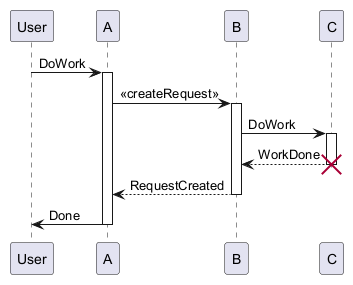
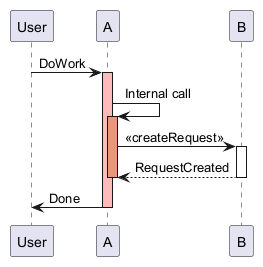
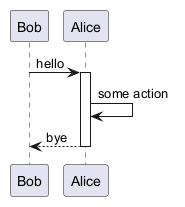
The activate and deactivate are used to denote
participant activation.
Once a participant is activated, its lifeline appears.
The activate and deactivate apply on
the previous message.
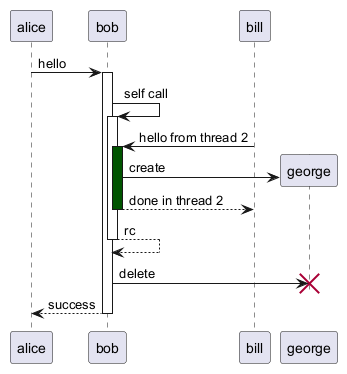
The destroy denote the end of the lifeline of a
participant.
Return
Command return generates a return message with optional text label.
The return point is that which caused the most recent life-line activation.
The syntax is return label where label if provided is any string acceptable for conventional messages.
Participant creation
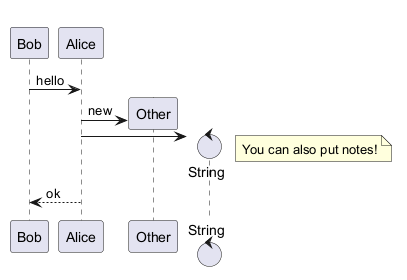
You can use the create keyword just before the first
reception of a message to emphasize the fact that this message is
actually creating this new object.
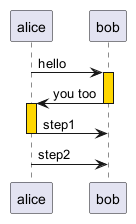
Shortcut syntax for activation, deactivation, creation
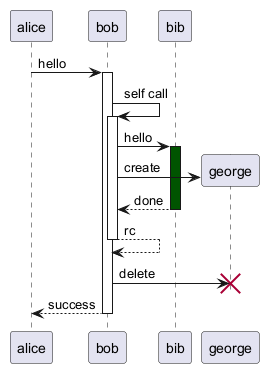
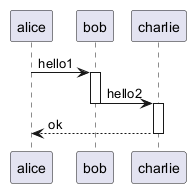
Immediately after specifying the target participant, the following syntax can be used:
++Activate the target (optionally a color may follow this)--Deactivate the source**Create an instance of the target!!Destroy an instance of the target
Incoming and outgoing messages
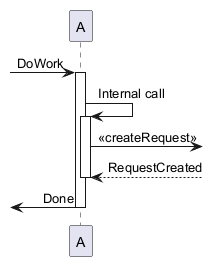
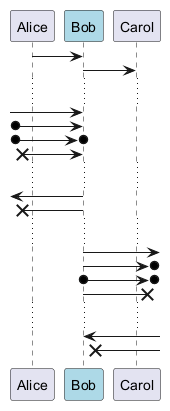
You can use incoming or outgoing arrows if you want to focus on a part
of the diagram.
Use square brackets to denote the left "[" or the
right "]" side of the diagram.
Short arrows for incoming and outgoing messages
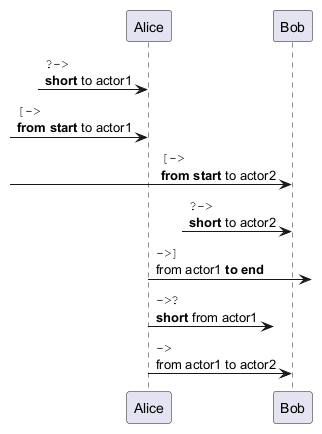
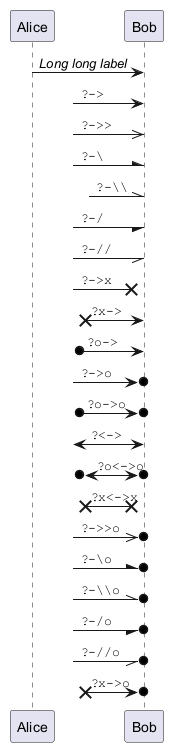
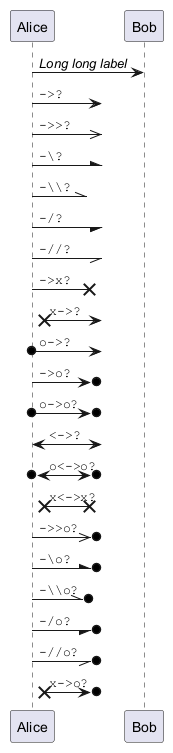
You can have short arrows with using ?.
Anchors and Duration
With teoz it is possible to add anchors to the diagram and use the anchors to specify duration time.
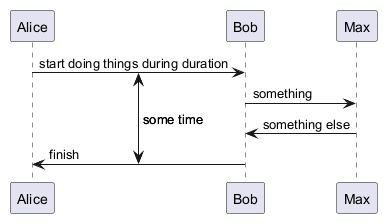
-P command-line option to specify the pragma:
java -jar plantuml.jar -Pteoz=true
[Ref. issue-582]
Stereotypes and Spots
It is possible to add stereotypes to participants using <<
and >>.
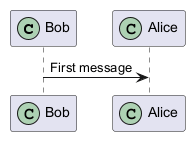
In the stereotype, you can add a spotted character
in a colored circle using the syntax (X,color).
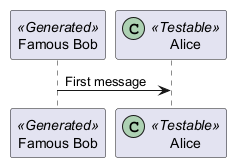
guillemet:
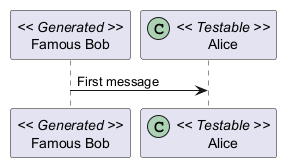
Position of the stereotypes
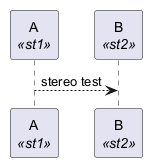
It is possible to define stereotypes position (top or bottom) with the command skinparam stereotypePosition.
Top postion (by default)
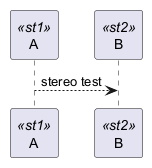
Bottom postion
More information on titles
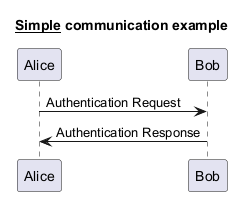
You can use creole formatting in the title.
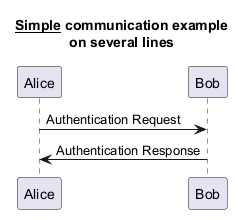
\n in the title description.
title
and end title keywords.
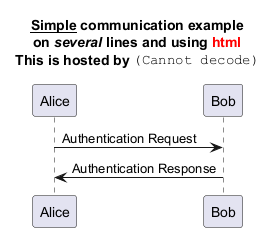
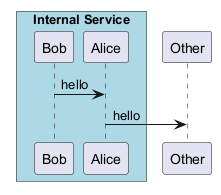
Participants encompass
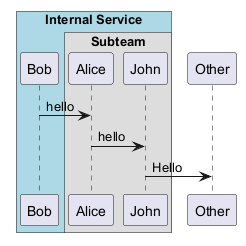
It is possible to draw a box around some participants, using box
and end box commands.
You can add an optional title or a
optional background color, after the box keyword.
Removing Foot Boxes
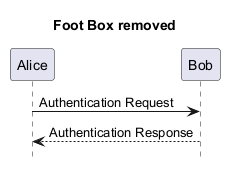
You can use the hide footbox keywords to remove the foot boxes
of the diagram.
Skinparam
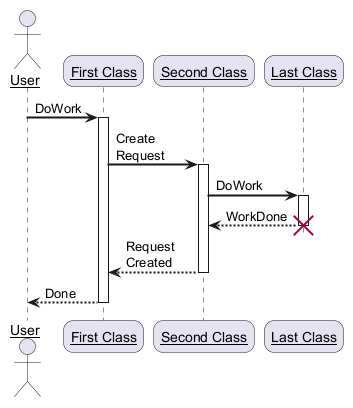
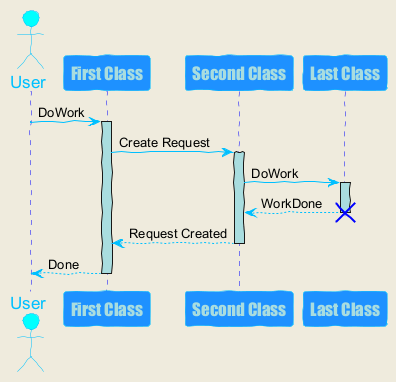
You can use the skinparam
command to change colors and fonts for the drawing.
You can use this command:
- In the diagram definition, like any other commands,
- In an included file,
- In a configuration file, provided in the command line or the ANT task.
Changing padding
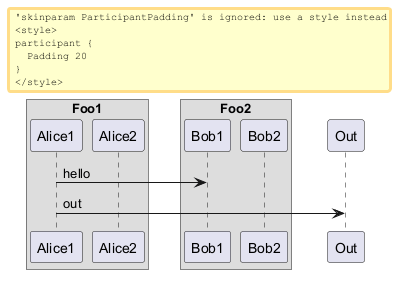
It is possible to tune some padding settings.
Appendix: Examples of all arrow type
Normal arrow

Itself arrow

Incoming and outgoing messages (with '[', ']')
Incoming messages (with '[')

Outgoing messages (with ']')

Short incoming and outgoing messages (with '?')
Short incoming (with '?')
Short outgoing (with '?')
Specific SkinParameter
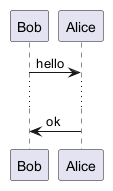
By default
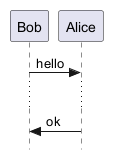
Style strictuml
To be conform to strict UML (for arrow style: emits triangle rather than sharp arrowheads), you can use:skinparam style strictuml
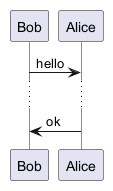
LifelineStrategy
nosolid/solid
skinparam lifelineStrategy solid no longer works.
[Ref. QA-9016, QA-2794]
In order to have solid life line in sequence diagrams, you must now use style:
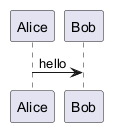
Hide unlinked participant
By default, all participants are displayed.
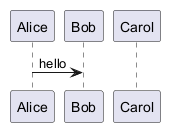
hide unlinked participant.
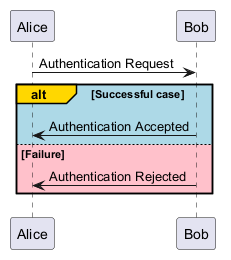
Color a group message
It is possible to color a group messages:
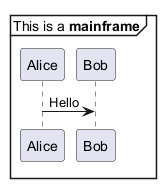
Mainframe
Slanted or odd arrows
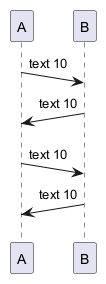
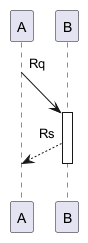
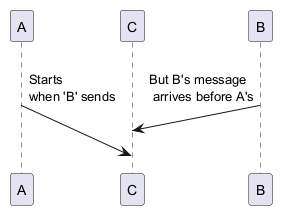
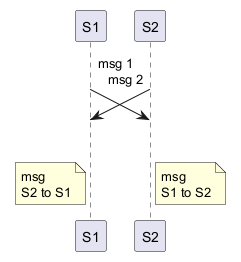
You can use the (nn) option (before or after arrow) to make the arrows slanted, where nn is the number of shift pixels.
[Available only after v1.2022.6beta+]
Parallel messages (with teoz)
You can use the & teoz command to display parallel messages:
Style for Solid Lifeline
By default
Solid Lifeline using style