



New! Render PlantUML diagrams directly inside GitHub
with our official browser extension —
No server. No tokens. No tracking. Zero permissions but clipboard. —
Try it out and let us know what you think!
Scalable Vector Graphics
 Edit in Dokuwiki
 Edit in Asciidoc
 Edit in Markdown
Command Line
Utilize the-tsvg flag with the PlantUML command line to enable SVG generation. Learn more about this in our command line guide.
Ant Task
Incorporate theformat="svg" setting in your Ant task definition to facilitate SVG generation. Find detailed instructions in our Ant task guide.
<target name="main">
  <plantuml dir="./src" format="svg" />
</target>
Java
You can also generate SVG directly from Java. Discover how to set this up in our Java API guide. Specific Skin Parameters for SVG
Enhance your SVG diagrams with specific skin parameters that allow you to customize various aspects of the output. Here we delve into some of the parameters you can use:
svgLinkTarget
ThesvgLinkTarget setting allows you to modify the target attribute in the hyperlinks generated in the SVG output, thereby controlling how the links will open when clicked.
Referencing the HTML specification, you have the following options:
_blank: Opens the link in a new window or tab_parent: Opens the link in the parent frame_self: Opens the link in the same frame where it was clicked (default setting)_top: Opens the link in the full body of the window
_top, applied when the svgLinkTarget is left empty.
The example below uses _parent:
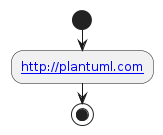
Please note that for SVG links to work properly when the SVG is used in a HTML page, you need to embed the resulting SVG content directly in the HTML page, rather than invoking it through an
<img> tag.
You may also want to use skinparam topurl (see link) to specify how to resolve relative links.
pathHoverColor
Utilize the skinparam pathHoverColor setting to specify a color that will be applied to links when hovered over with the mouse pointer, enhancing user interaction with your diagrams.
@startuml
skinparam pathHoverColor green
class Foo2 [[http://www.yahoo.com/Foo2]] {
  +double[] x
  +double y
}
Foo2 --> Foo3
@enduml
[Reference: QA-5453]
svgDimensionStyle
If you prefer not to include thestyle, width, and height attributes in the SVG output header, set the skinparam svgDimensionStyle to false. This gives you cleaner output, focusing solely on the essential elements of your diagram.
@startuml
skinparam svgDimensionStyle false

component a {
}
component b {
}
a -(0- b
@enduml
[Reference QA-7334]
svgSize Pragma
Leverage the svgSize pragma directive to define custom sizes for specific SVG elements in your PlantUML diagrams.
Using the svgSize Pragma Directive
The !pragma svgSize <U+hhhhh> XX directive informs PlantUML to assume the size of the <U+hhhhh> element to be the same as the text 'XX' provided.
Here are different ways you can use this directive to obtain the ideal setting:
!pragma svgSize <U+hhhhh> XX!pragma svgSize <U+hhhhh> I
Example Usage
Below is an example PlantUML code utilizing thesvgSize directive:
@startuml
!pragma svgSize <U+1F610> XX

test: text <U+1F610>
test_size45: text <size:45><U+1F610>
@enduml
Command-Line Options
You can specify thesvgSize pragma using the -P option on the command-line. Remember to:
- Enclose the argument in quotes, especially when it contains spaces.
- Use this option multiple times in a single command, if necessary.
Example
java -jar plantuml.jar "-PsvgSize=<U+1F610> XX" "-PsvgSize=<U+1F611> I" -Tsvg <file.puml>
References
Interactive SVG
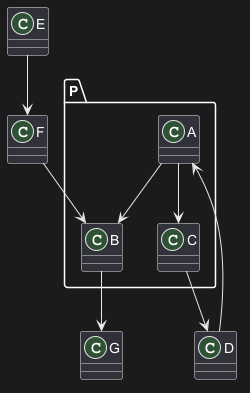
svgInteractive allows you to comprehend better complicated diagrams:
- When you click on a diagram element, all other elements that are not connected to it, are dimmed out.
- When you click the same element twice, all elements are restored to their original visibility.

On Class, Object, UseCase or Deployment diagram
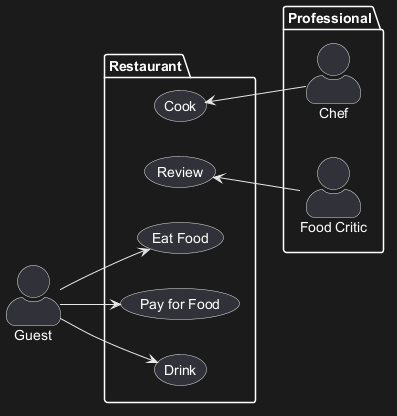
On Sequence diagram
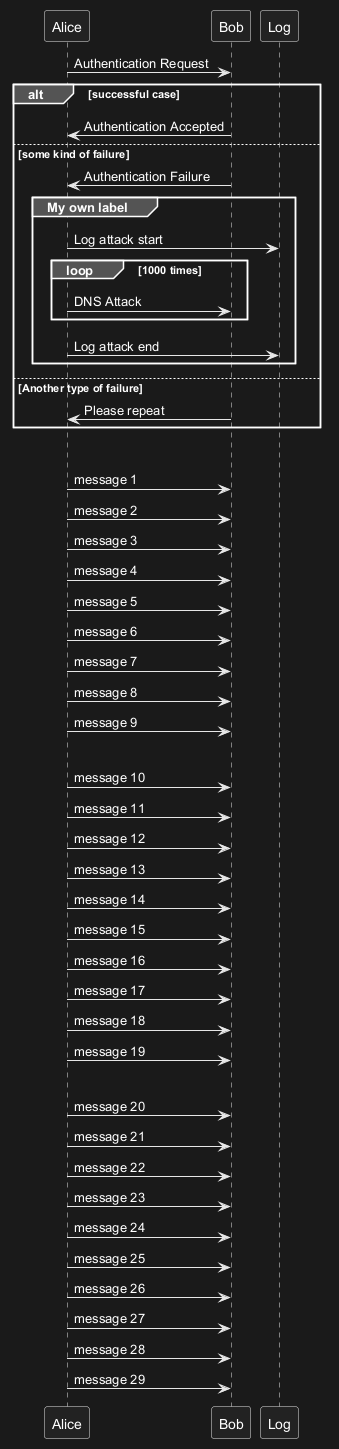
Option for SVG [svgTitle, svgDesc]
You can add <title> and <desc> tags on SVG output by using svgTitle and svgDesc options: