





New! Render PlantUML diagrams directly inside GitHub
with our official browser extension —
No server. No tokens. No tracking. Zero permissions but clipboard. —
Try it out and let us know what you think!
Network Diagram with nwdiag
 Edit in Dokuwiki
 Edit in Asciidoc
 Edit in Markdown
 Simple diagram
Define a network
To make the process more efficient, it is now possible to bypass thenwdiag { ... } wrapper. You can define your network directly within the PlantUML tags.
Standard approach:


Define some elements or servers on a network
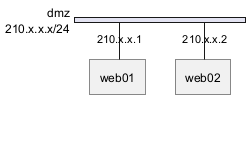
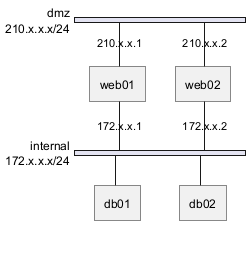
Full example
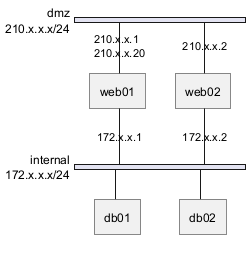
Define multiple addresses
Grouping nodes
Define group inside network definitions
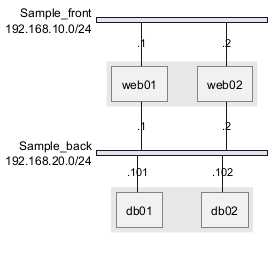
Define group outside of network definitions
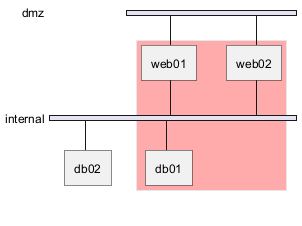
Define several groups on same network
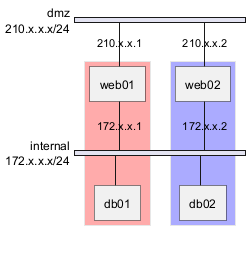
Example with 2 group
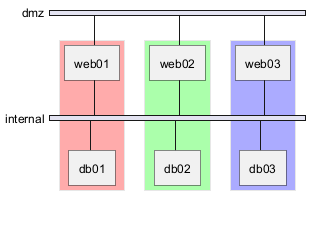
Example with 3 groups
Extended Syntax (for network or group)
Network
For network or network's component, you can add or change: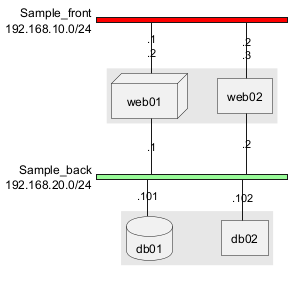
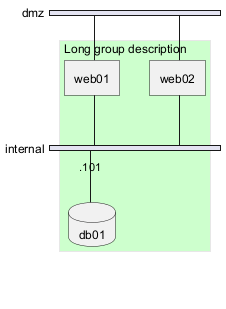
Group
For a group, you can add or change:- color;
- description.
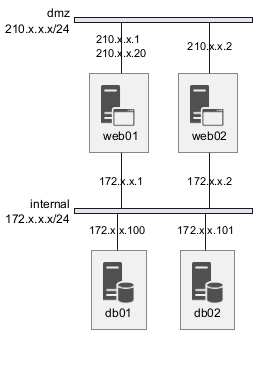
Using Sprites
You can use all sprites (icons) from the Standard Library or any other library.
Use the notation <$sprite> to use a sprite, \n to make a new line, or any other Creole syntax.
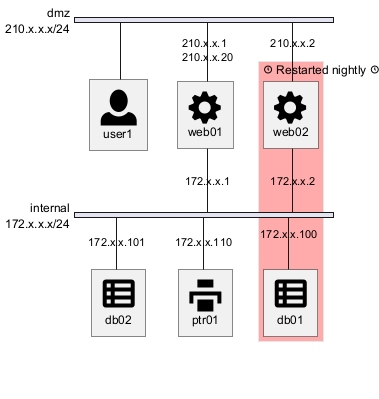
Using OpenIconic
You can also use the icons from OpenIconic in network or node descriptions.
Use the notation <&icon> to make an icon, <&icon*n> to multiply the size by a factor n, and \n to make a newline:
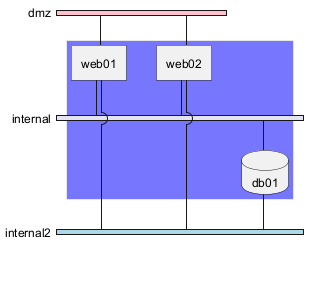
Same nodes on more than two networks
You can use same nodes on different networks (more than two networks); nwdiag use in this case 'jump line' over networks.
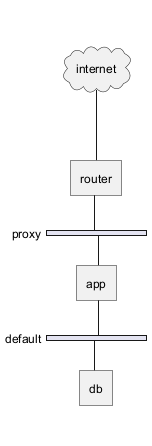
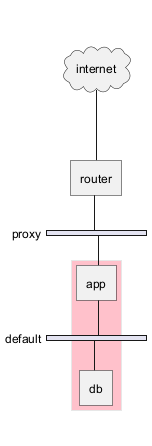
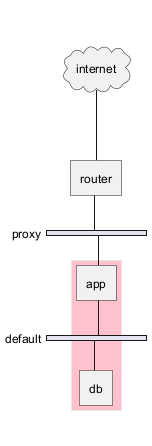
Peer networks
Peer networks are simple connections between two nodes, for which we don't use a horizontal "busbar" network
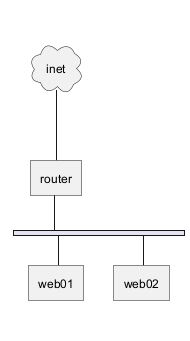
Peer networks and group
Without group
Group on first
Group on second
Group on third
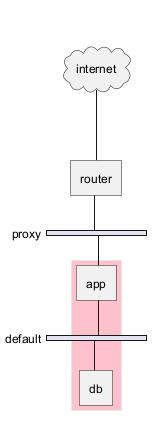
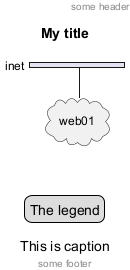
Add title, caption, header, footer or legend on network diagram
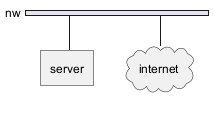
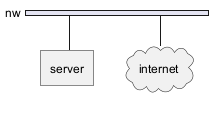
With or without shadow
With shadow (by default)
Without shadow
Change width of the networks
You can change the width of the networks, especially in order to have the same full width for only some or all networks.
Here are some examples, with all the possibilities.
First example
- without
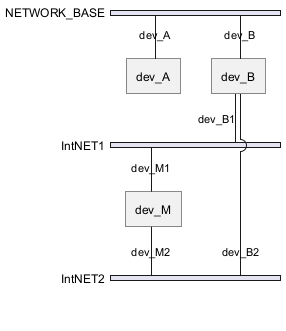
- only the first
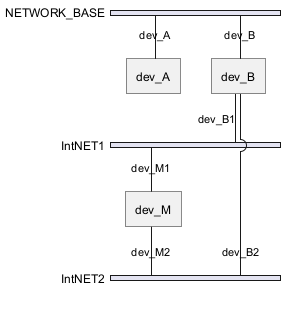
- the first and the second
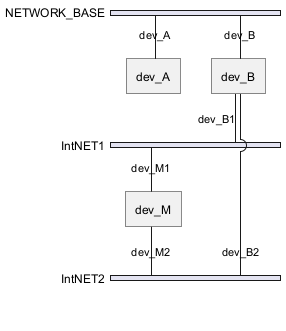
- all the network (with same full width)
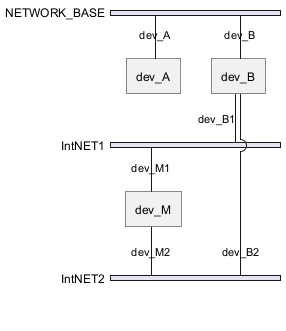
Second example
- without
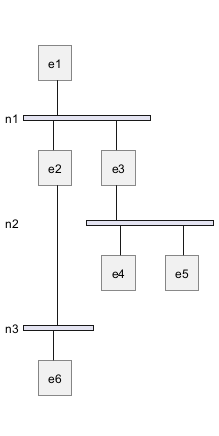
- only the first
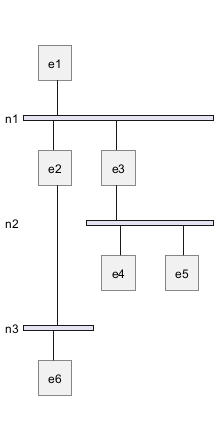
- the first and the second
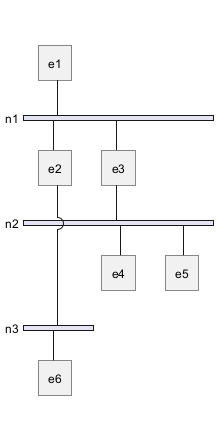
- all the network (with same full width)
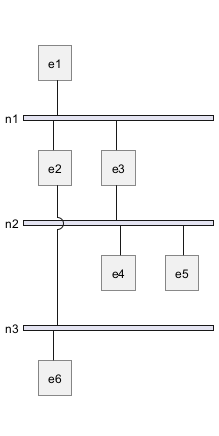
Other internal networks
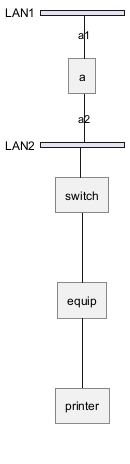
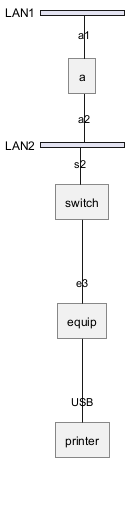
You can define other internal networks (TCP/IP, USB, SERIAL,...).
- Without address or type
- With address or type
Using (global) style
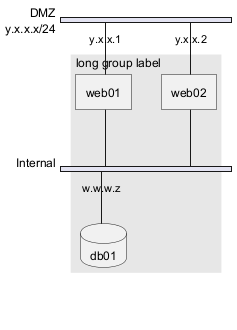
Without style (by default)
With style
You can use style to change rendering of elements.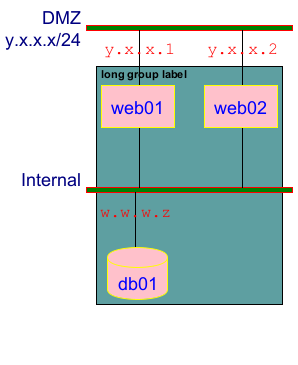
Appendix: Test of all shapes on Network diagram (nwdiag)
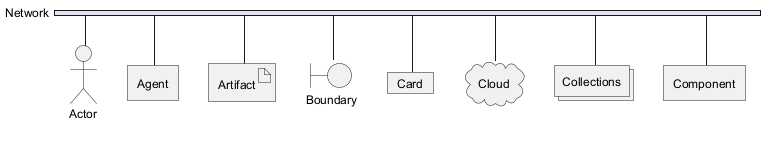


FIXME
- Overlap of label for folder
- Hexagon shape is missing
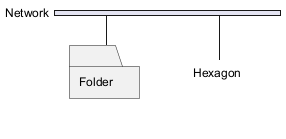
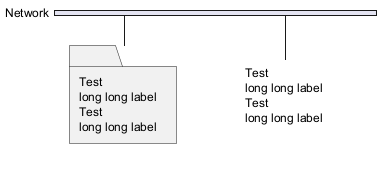
FIXME