



New! Render PlantUML diagrams directly inside GitHub
with our official browser extension —
No server. No tokens. No tracking. Zero permissions but clipboard. —
Try it out and let us know what you think!
Commandes communes dans PlantUML
 Edit in Dokuwiki
 Edit in Asciidoc
 Edit in Markdown
Global Elements
- Comments : Ajoutez des remarques ou des notes explicatives dans le script de votre diagramme pour transmettre des informations supplémentaires ou pour laisser des rappels en vue de modifications ultérieures.
- Notes : Incorporez des informations supplémentaires directement dans votre diagramme pour faciliter la compréhension ou pour mettre en évidence des aspects importants.
- Size Control (Contrôle de la taille) : Ajustez les dimensions des différents éléments en fonction de vos préférences, afin d'obtenir un diagramme équilibré et bien proportionné.
- Titre et légendes : Définissez un titre approprié et ajoutez des légendes pour clarifier le contexte ou pour annoter des parties spécifiques de votre diagramme.
Description de la syntaxe créole
Exploitez la puissance de la syntaxe créole pour formater davantage le contenu de n'importe quel élément de votre diagramme. Ce style de balisage wiki permet :- Formatage du texte : Personnalisez l'apparence de votre texte avec différents styles et alignements.
- Listes : Créez des listes ordonnées ou non ordonnées pour présenter les informations de manière claire.
- Liens : Intégrez des hyperliens pour faciliter la navigation rapide vers les ressources pertinentes.
Commande de contrôle du style
Contrôlez entièrement le style de présentation de vos éléments de diagramme à l'aide de la commandestyle. Utilisez-la pour :
- Définir des styles : Définir des styles uniformes pour les éléments afin de maintenir un thème visuel cohérent.
- Personnaliser les couleurs : Choisir des couleurs spécifiques pour divers éléments afin d'améliorer l'attrait visuel et de créer des classifications distinctes.
 Commentaires
Commentaire simple
Tout ce qui commence par unesimple apostrophe ' en début de ligne est un commentaire.
@startuml
'Line comments use a single apostrophe
@enduml
Commentaire de bloc
Les commentaires de bloc utilisent le style de commentaires C, sauf qu'au lieu de*, vous utilisez une apostrophe ', vous pouvez également placer des commentaires sur plusieurs lignes en utilisant /' au début et '/ à la fin.
@startuml
/'
many lines comments
here
'/
@enduml
[Ref. QA-1353] Vous pouvez ensuite insérer un commentaire de bloc sur la même ligne, comme ceci :
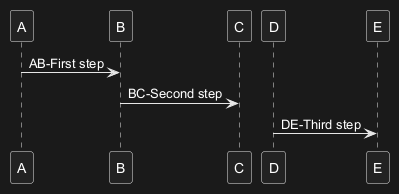
Full example

Zoom or Scale
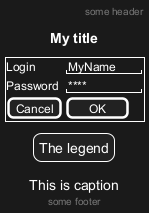
You can use the scale command to zoom the generated image.
You can use either a number or a fraction to define the scale factor.
You can also specify either width or height (in pixel).
And you can also give both width and height: the image is scaled to fit inside the specified dimension.
scale 1.5scale 2/3scale 200 widthscale 200 heightscale 200*100scale max 300*200scale max 1024 widthscale max 800 height

Title
The title keywords is used to put a title.
You can add newline using \n in the title description.
Some skinparam settings are available to put borders on the title.
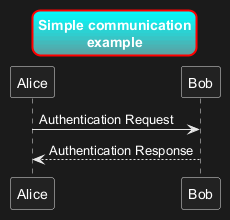
title
and end title keywords.
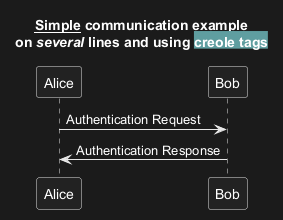
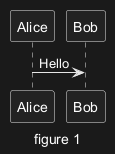
Caption
There is also a caption keyword to put a caption under the diagram.
Footer and header
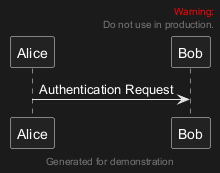
You can use the commands header or footer to
add a footer or a header on any generated diagram.
You can optionally specify if you want a center, left
or right footer/header, by adding a keyword.
As with title, it is possible to define a header or a footer on
several lines.
It is also possible to put some HTML into the header or footer.
Legend the diagram
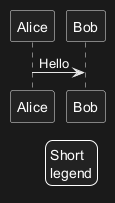
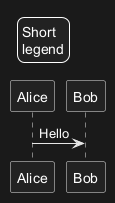
The legend and end legend are keywords is used to put a legend.
You can optionally specify to have left, right, top, bottom or center
alignment for the legend.
Appendix: Examples on all diagram
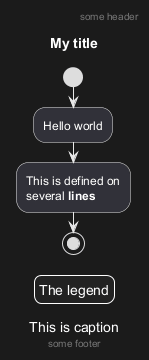
Activity
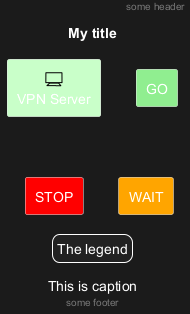
Archimate
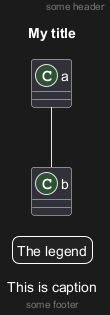
Class
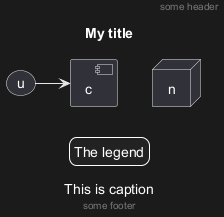
Component, Deployment, Use-Case
Gantt project planning
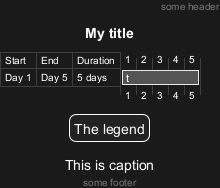
DONE
[(Header, footer) corrected on V1.2020.18]
Object
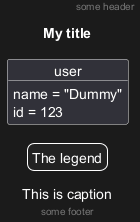
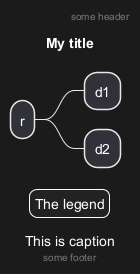
MindMap
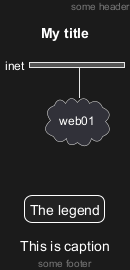
Network (nwdiag)
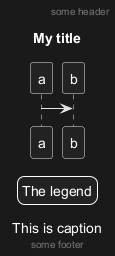
Sequence
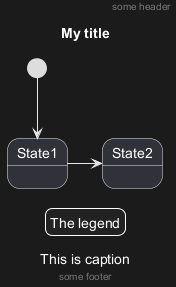
State
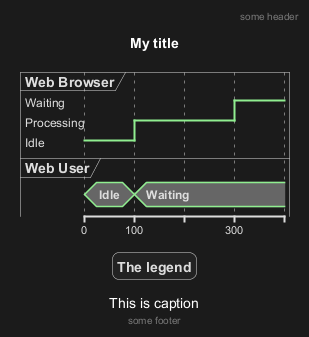
Timing
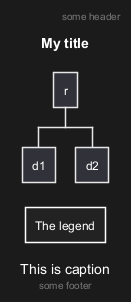
Work Breakdown Structure (WBS)
DONE
[Corrected on V1.2020.17]
Wireframe (SALT)
DONE
[Corrected on V1.2020.18]
Appendix: Examples on all diagram with style
DONE
FYI:
- all is only good for
Sequence diagram title,captionandlegendare good for all diagrams except forsalt diagram
FIXME
🚩
- Now (test on 1.2020.18-19)
header,footerare not good for all other diagrams except only forSequence diagram.
FIXME
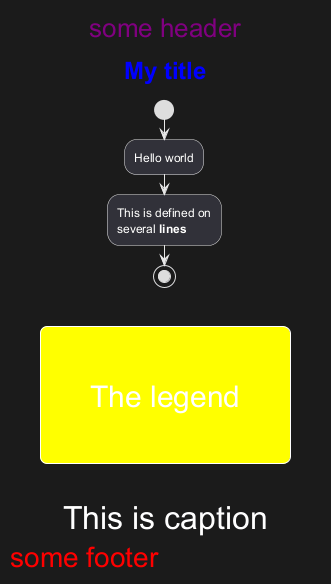
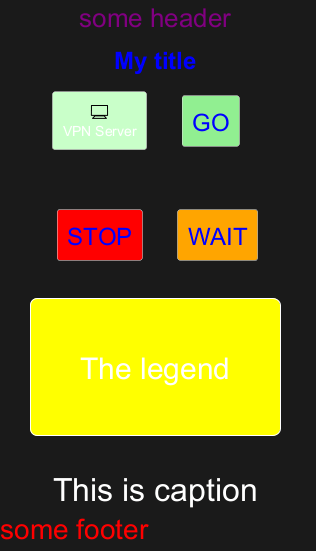
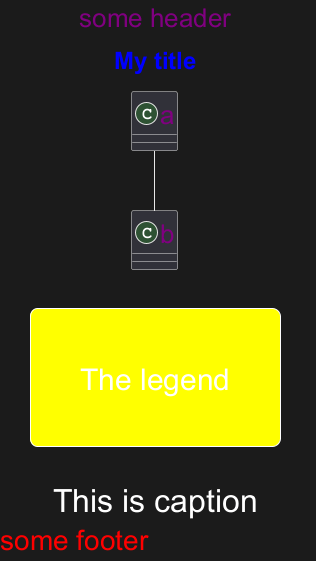
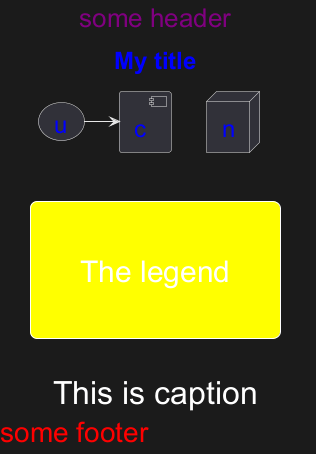
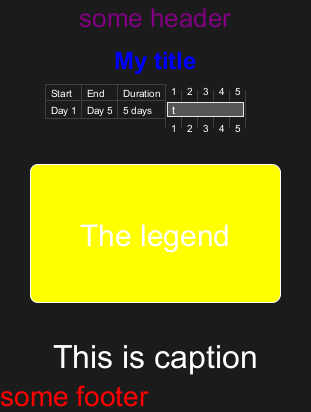
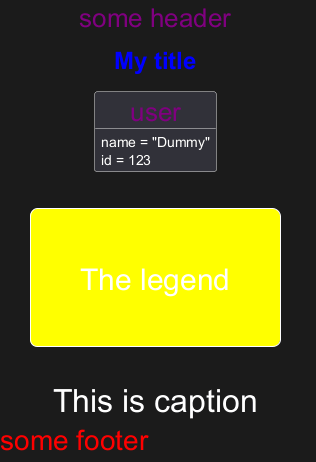
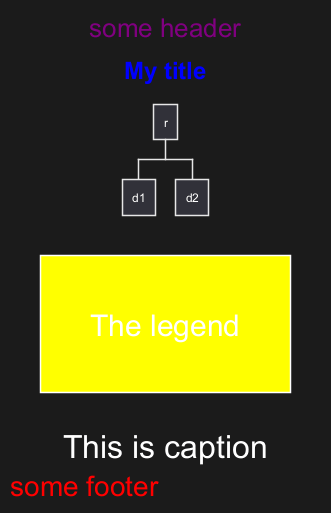
Here are tests of title, header, footer, caption or legend on all the diagram with the debug style:
<style>
title {
  HorizontalAlignment right
  FontSize 24
  FontColor blue
}

header {
  HorizontalAlignment center
  FontSize 26
  FontColor purple
}

footer {
  HorizontalAlignment left
  FontSize 28
  FontColor red
}

legend {
  FontSize 30
  BackGroundColor yellow
  Margin 30
  Padding 50
}

caption {
  FontSize 32
}
</style>
Activity
Archimate
Class
Component, Deployment, Use-Case
Gantt project planning
Object
MindMap
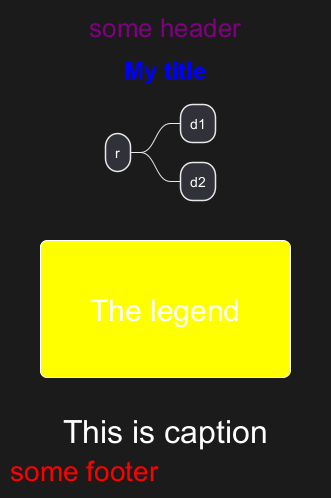
Network (nwdiag)
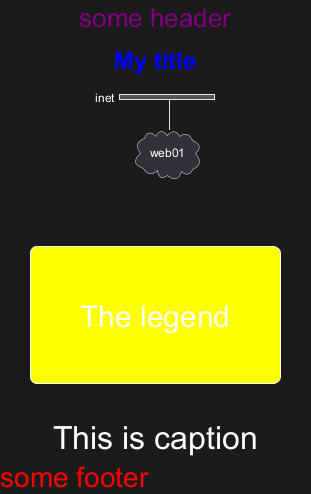
Sequence
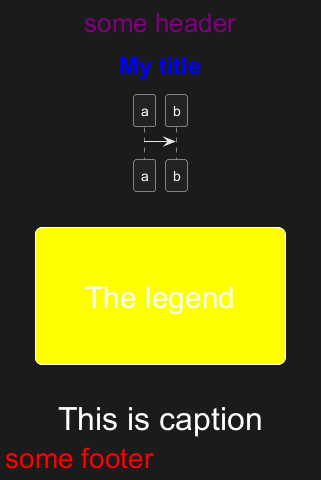
State
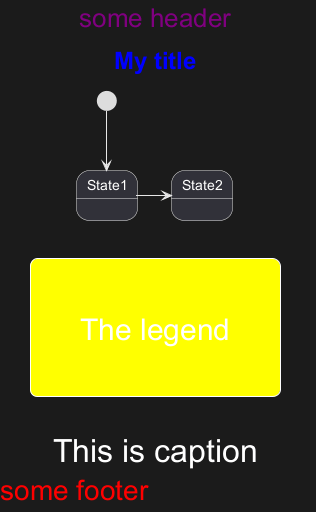
Timing
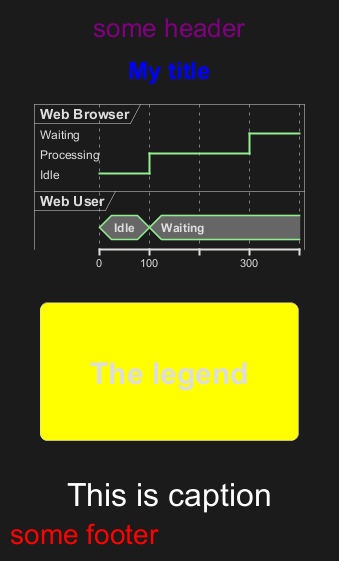
Work Breakdown Structure (WBS)
Wireframe (SALT)
FIXME
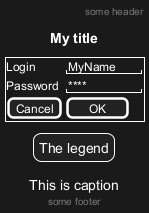
Fix all (title, caption, legend, header, footer) for salt.
FIXME
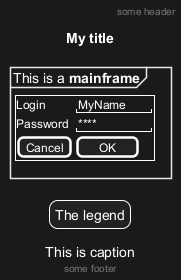
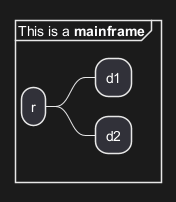
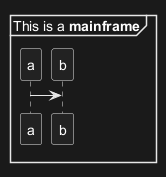
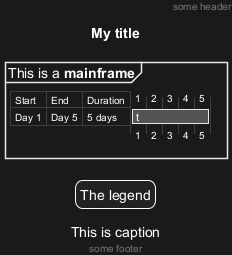
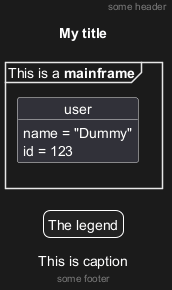
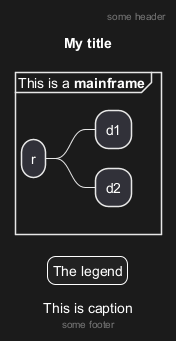
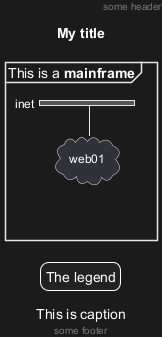
Mainframe
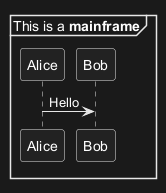
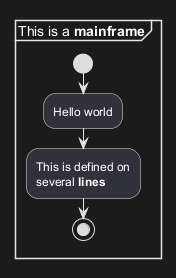
Appendix: Examples of Mainframe on all diagram
Activity
Archimate
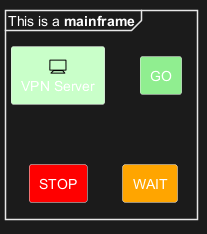
FIXME
🚩
Cropped on the top and on the left
FIXME
Class
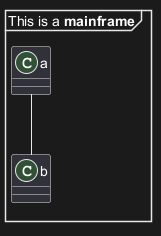
FIXME
🚩
Cropped on the top and on the left
FIXME
Component, Deployment, Use-Case
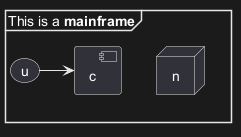
FIXME
🚩
Cropped on the top and on the left
FIXME
Gantt project planning
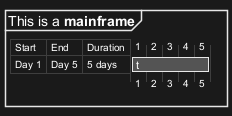
FIXME
🚩
Cropped on the top and on the left
FIXME
Object
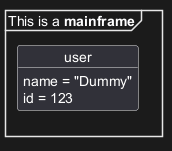
FIXME
🚩
Cropped on the top!
FIXME
MindMap
Network (nwdiag)
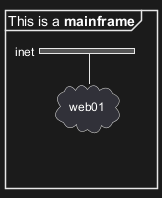
FIXME
🚩
Cropped on the top!
FIXME
Sequence
State
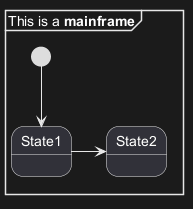
FIXME
🚩
Cropped on the top and on the left
FIXME
Timing
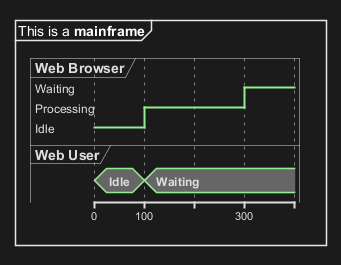
Work Breakdown Structure (WBS)
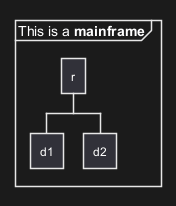
Wireframe (SALT)
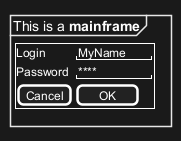
Appendix: Examples of title, header, footer, caption, legend and mainframe on all diagram
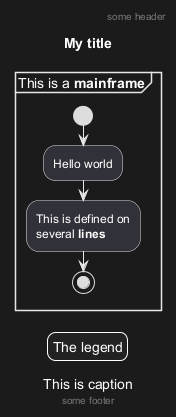
Activity
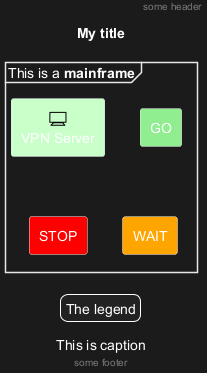
Archimate
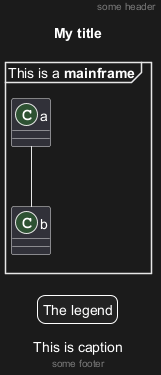
Class
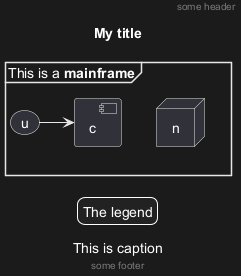
Component, Deployment, Use-Case
Gantt project planning
Object
MindMap
Network (nwdiag)
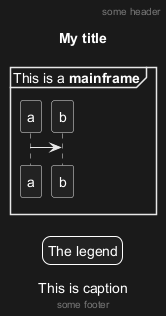
Sequence
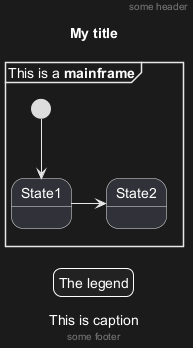
State
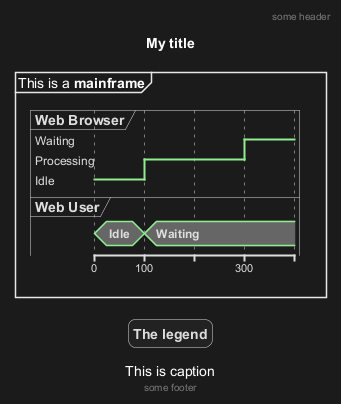
Timing
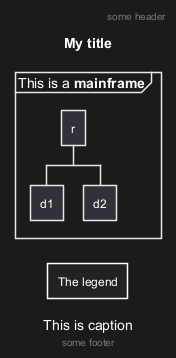
Work Breakdown Structure (WBS)
Wireframe (SALT)