



New! Render PlantUML diagrams directly inside GitHub
with our official browser extension —
No server. No tokens. No tracking. Zero permissions but clipboard. —
Try it out and let us know what you think!
Общие команды в PlantUML
 Edit in Dokuwiki
 Edit in Asciidoc
 Edit in Markdown
Глобальные элементы
- Комментарии: Добавляют примечания или пояснения в сценарий диаграммы для передачи дополнительной информации или напоминания о необходимости дальнейших изменений.
- Примечания: Включение дополнительной информации непосредственно в диаграмму для облегчения понимания или выделения важных аспектов.
- Управление размерами: Настройте размеры различных элементов в соответствии с вашими предпочтениями, чтобы диаграмма получилась сбалансированной и пропорциональной.
- Заголовок и подписи: Определите подходящий заголовок и добавьте подписи, чтобы прояснить контекст или аннотировать определенные части диаграммы.
Описание синтаксиса Creole
Используйте возможности синтаксиса Creole для дальнейшего форматирования содержимого любого элемента диаграммы. Этот стиль вики-разметки позволяет:- Форматирование текста: Настраивать внешний вид текста с помощью различных стилей и выравниваний.
- Списки: Создавать упорядоченные и неупорядоченные списки для удобного представления информации.
- Ссылки: Встраивать гиперссылки для быстрого перехода к нужным ресурсам.
Команда управления стилями
С помощью командыstyle можно полностью контролировать стиль представления элементов диаграммы. С ее помощью можно:
- Определить стили: Задать единые стили для элементов, чтобы сохранить целостность визуальной темы.
- Настроить цвета: Выбор определенных цветов для различных элементов для повышения визуальной привлекательности и создания четкой классификации.
 Комментарии
Простой комментарий
Все записи начинающиеся с "одинарной кавычки" - это комментарии.
@startuml
'Для однострочного комментария используется одиночный апостроф
@enduml
Block comment
Block comment use C-style comments except that instead of* you use an apostrophe ',
then you can also put comments on several lines using /' to start and '/ to end.
@startuml
/'
many lines comments
here
'/
@enduml
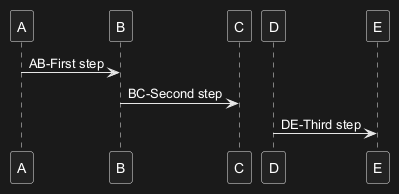
[Ref. QA-1353] Then you can also put block comment on the same line, as:
WARNING
This translation need to be updated. WARNING
Zoom or Scale
You can use the scale command to zoom the generated image.
You can use either a number or a fraction to define the scale factor.
You can also specify either width or height (in pixel).
And you can also give both width and height: the image is scaled to fit inside the specified dimension.
scale 1.5scale 2/3scale 200 widthscale 200 heightscale 200*100scale max 300*200scale max 1024 widthscale max 800 height

Title
The title keywords is used to put a title.
You can add newline using \n in the title description.
Some skinparam settings are available to put borders on the title.
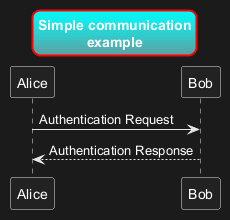
title
and end title keywords.
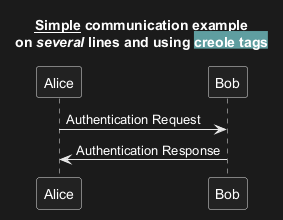
Caption
There is also a caption keyword to put a caption under the diagram.
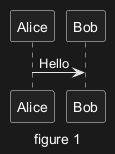
Footer and header
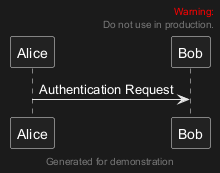
You can use the commands header or footer to
add a footer or a header on any generated diagram.
You can optionally specify if you want a center, left
or right footer/header, by adding a keyword.
As with title, it is possible to define a header or a footer on
several lines.
It is also possible to put some HTML into the header or footer.
Legend the diagram
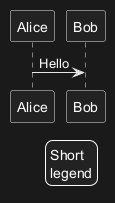
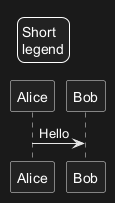
The legend and end legend are keywords is used to put a legend.
You can optionally specify to have left, right, top, bottom or center
alignment for the legend.
Appendix: Examples on all diagram
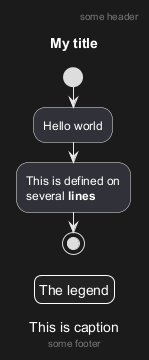
Activity
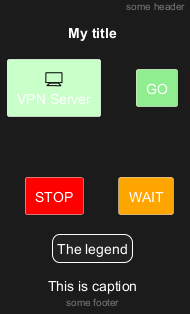
Archimate
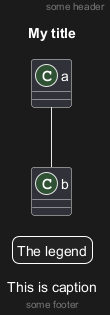
Class
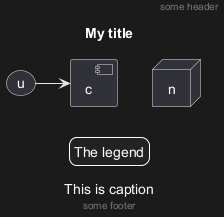
Component, Deployment, Use-Case
Gantt project planning
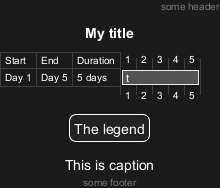
DONE
[(Header, footer) corrected on V1.2020.18]
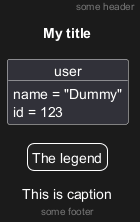
Object
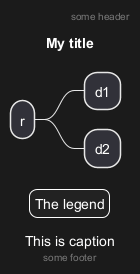
MindMap
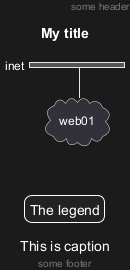
Network (nwdiag)
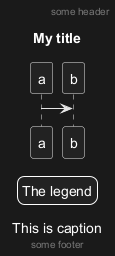
Sequence
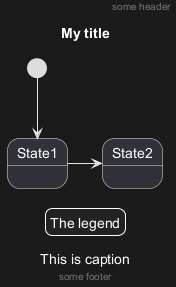
State
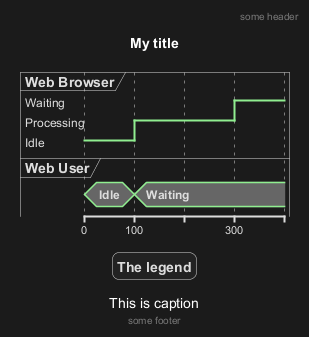
Timing
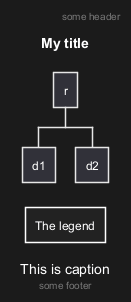
Work Breakdown Structure (WBS)
DONE
[Corrected on V1.2020.17]
Wireframe (SALT)
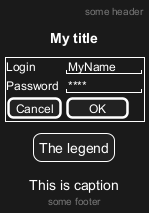
DONE
[Corrected on V1.2020.18]
Appendix: Examples on all diagram with style
DONE
FYI:
- all is only good for
Sequence diagram title,captionandlegendare good for all diagrams except forsalt diagram
FIXME
🚩
- Now (test on 1.2020.18-19)
header,footerare not good for all other diagrams except only forSequence diagram.
FIXME
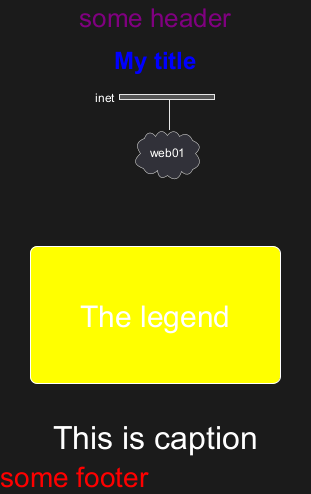
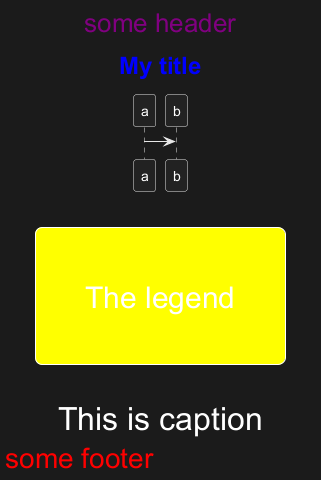
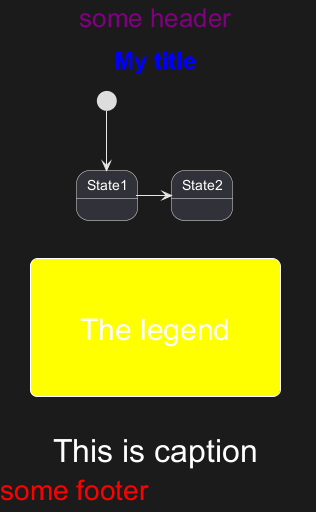
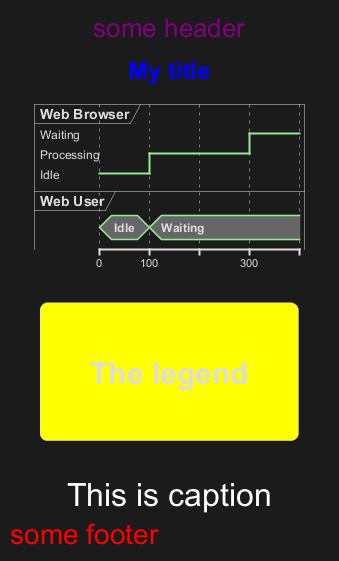
Here are tests of title, header, footer, caption or legend on all the diagram with the debug style:
<style>
title {
  HorizontalAlignment right
  FontSize 24
  FontColor blue
}

header {
  HorizontalAlignment center
  FontSize 26
  FontColor purple
}

footer {
  HorizontalAlignment left
  FontSize 28
  FontColor red
}

legend {
  FontSize 30
  BackGroundColor yellow
  Margin 30
  Padding 50
}

caption {
  FontSize 32
}
</style>
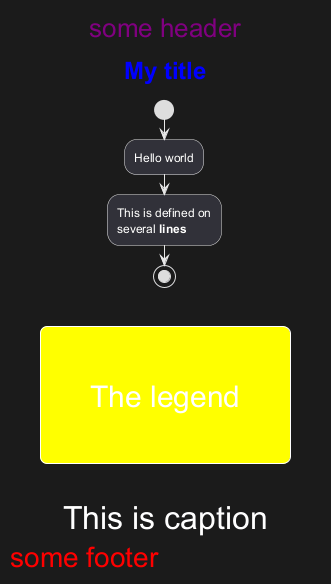
Activity
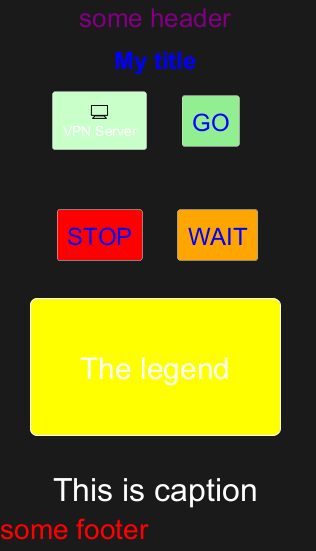
Archimate
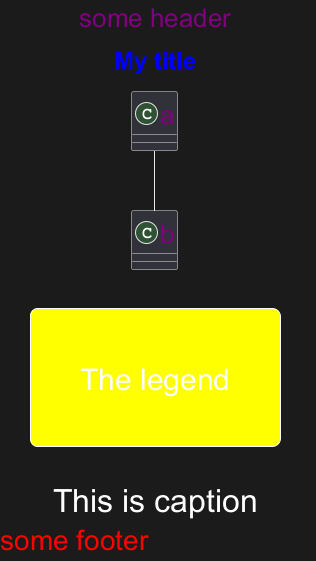
Class
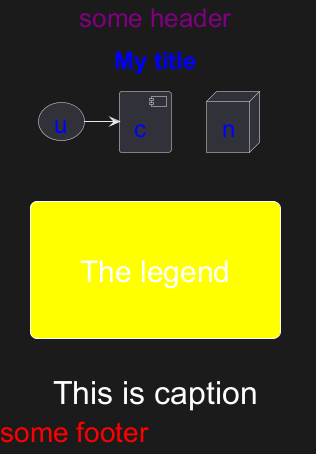
Component, Deployment, Use-Case
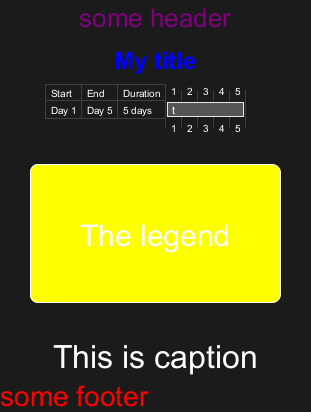
Gantt project planning
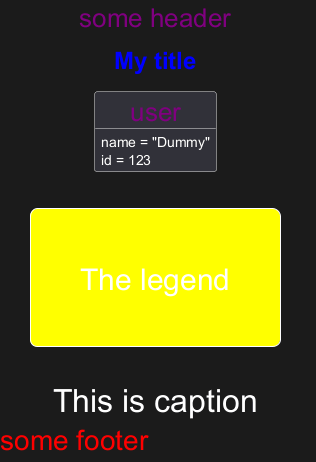
Object
MindMap
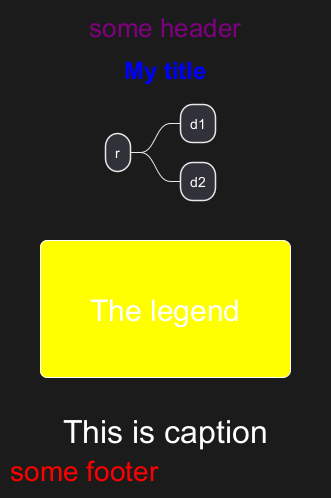
Network (nwdiag)
Sequence
State
Timing
Work Breakdown Structure (WBS)
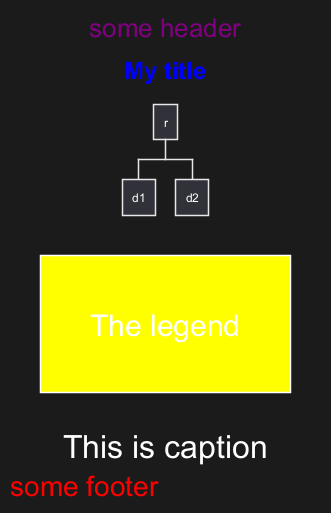
Wireframe (SALT)
FIXME
Fix all (title, caption, legend, header, footer) for salt.
FIXME
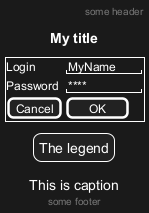
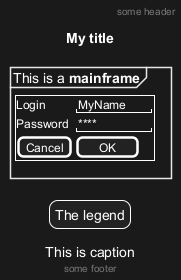
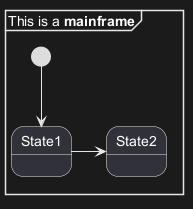
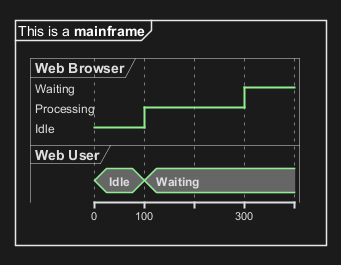
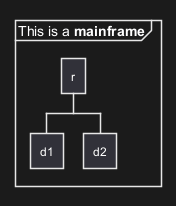
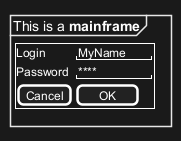
Mainframe
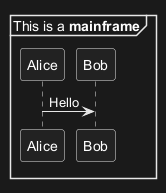
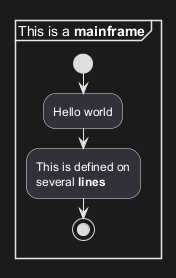
Appendix: Examples of Mainframe on all diagram
Activity
Archimate
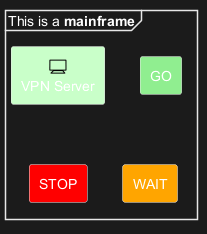
FIXME
🚩
Cropped on the top and on the left
FIXME
Class
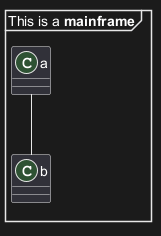
FIXME
🚩
Cropped on the top and on the left
FIXME
Component, Deployment, Use-Case
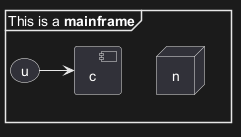
FIXME
🚩
Cropped on the top and on the left
FIXME
Gantt project planning
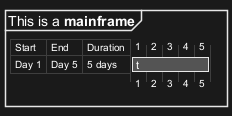
FIXME
🚩
Cropped on the top and on the left
FIXME
Object
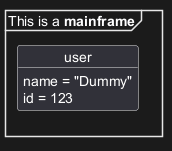
FIXME
🚩
Cropped on the top!
FIXME
MindMap
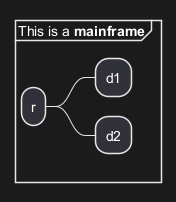
Network (nwdiag)
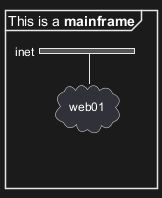
FIXME
🚩
Cropped on the top!
FIXME
Sequence
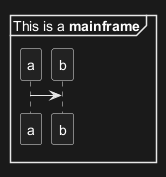
State
FIXME
🚩
Cropped on the top and on the left
FIXME
Timing
Work Breakdown Structure (WBS)
Wireframe (SALT)
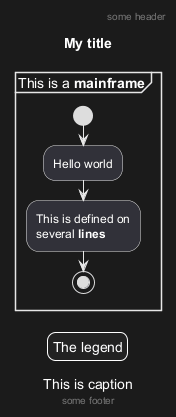
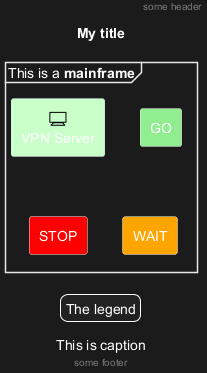
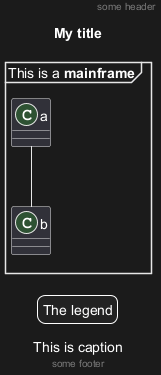
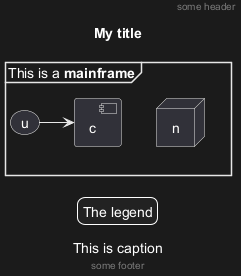
Appendix: Examples of title, header, footer, caption, legend and mainframe on all diagram
Activity
Archimate
Class
Component, Deployment, Use-Case
Gantt project planning
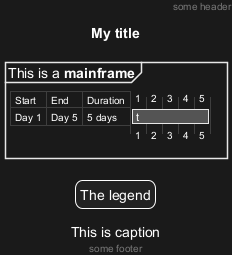
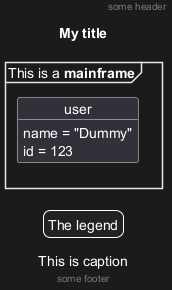
Object
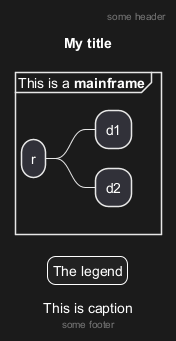
MindMap
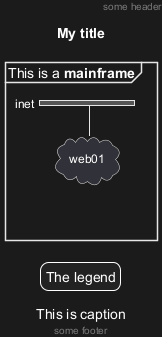
Network (nwdiag)
Sequence
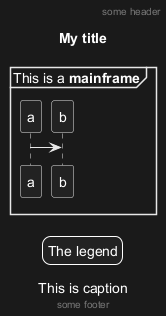
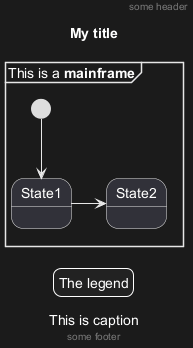
State
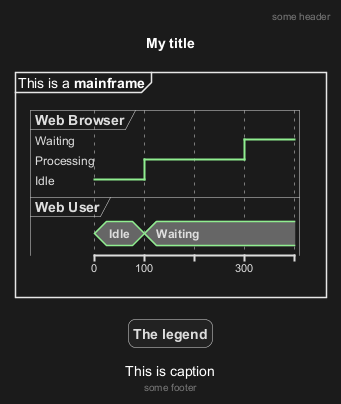
Timing
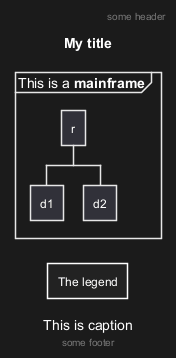
Work Breakdown Structure (WBS)
Wireframe (SALT)