



New! Render PlantUML diagrams directly inside GitHub
with our official browser extension —
No server. No tokens. No tracking. Zero permissions but clipboard. —
Try it out and let us know what you think!
Activity Diagram (legacy)
 Edit in Dokuwiki
 Edit in Asciidoc
 Edit in Markdown
 Simple Action
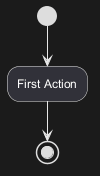
You can use (*) for the starting point and ending point of
the activity diagram.
In some occasion, you may want to use (*top) to force the starting point to be at the top of the diagram.
Use --> for arrows.
화살표 라벨
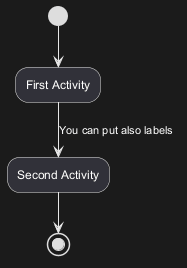
기본적으로 화살표는 마지막으로 사용한 액티비티에서 시작한다.
화살표에 라벨을 붙이려면 화살표 정의 바로 다음에
대괄호를 사용한다.
Changing arrow direction
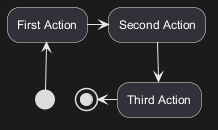
You can use -> for horizontal arrows. It is possible to
force arrow's direction using the following syntax:
-down->(default arrow)-right->or->-left->-up->
Branches
You can use if/then/else keywords to define branches.
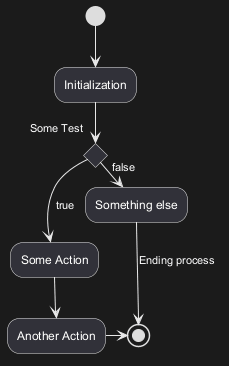
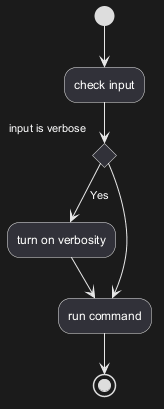
브랜치에 덧붙임
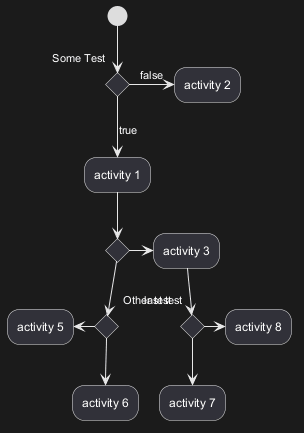
기본적으로 브랜치는 마지막에 정의한 액티비티와 연결된다.
하지만 이 룰을 오버라이드 하여 다른 연결 관계를 if 키워드로
정의할 수 있다.
브랜치 내 브랜치 정도 가능하다.
Synchronization
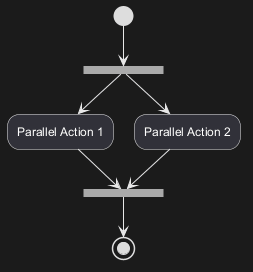
You can use === code === to display synchronization bars.
Long action description
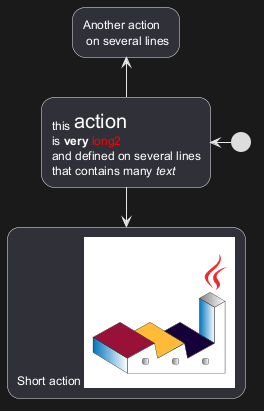
When you declare activities, you can span on several lines the
description text. You can also add \n in the description.
You can also give a short code to the activity with the as
keyword.
This code can be used latter in the diagram description.
Notes
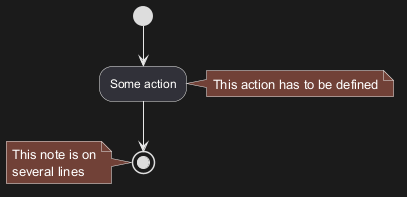
You can add notes on a activity using the commands
note left,
note right, note top or note bottom,
just after the description of the activity you want to note.
If you want to put a note on the starting point, define the note
at the very beginning of the diagram description.
You can also have a note on several lines, using the
endnote keywords.
Partition
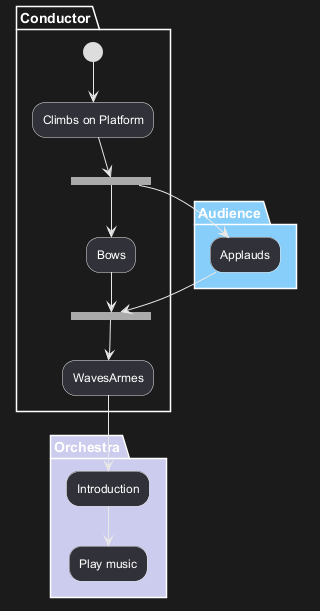
You can define a partition using the partition keyword, and
optionally declare a background color for your partition (Using a html
color code or name)
When you declare activities, they are automatically put in the
last used partition.
You can close the partition definition using a closing bracket }.
Skinparam
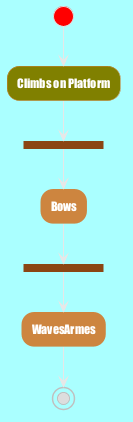
You can use the skinparam
command to change colors and fonts for the drawing.
You can use this command :
- In the diagram definition, like any other commands,
- In an included file,
- In a configuration file, provided in the command line or the ANT task.
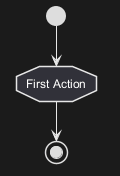
Octagon
You can change the shape of activities to octagon using the skinparam activityShape octagon
command.
Complete example